
The SiteCapture app can automatically detect when a photo is out of focus. This guide explains how to enable and use the Blurry Photo Detection feature.
Currently, this feature is only available on iOS devices. If you wish to have this feature turned on, please contact support@sitecapture.com
Configuring Blurry Photo Detection
Blurry Photo Detection is enabled on all devices by default when the feature is added. The below steps show how to configure the sensitivity level or disable the feature.
1. Go to the Settings tab.
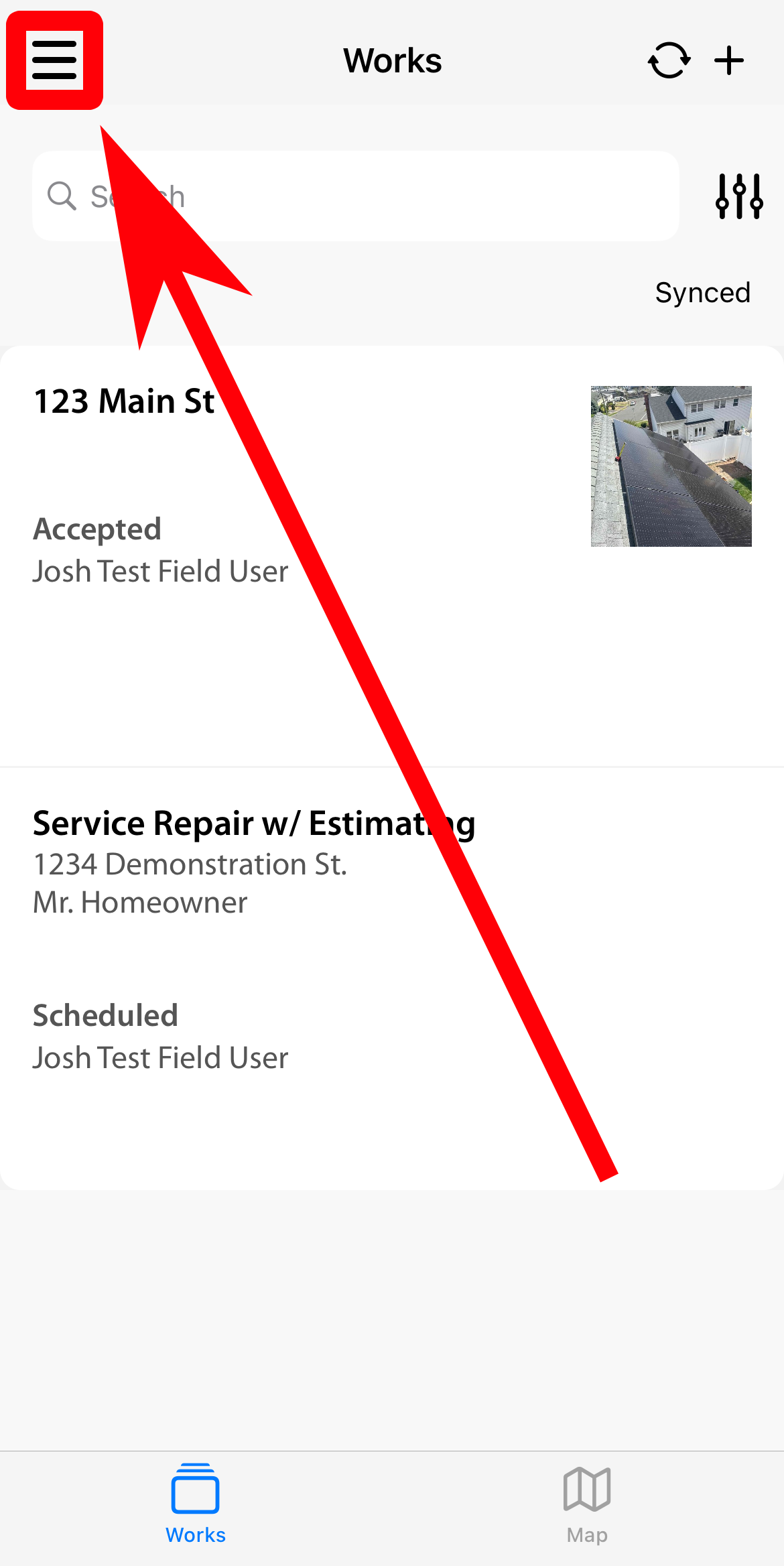
2. Select Blurry Photo Detection.
If the Blurry Photo Detection option is not present and you have already received confirmation that it has been turned on for your account, you will need to hit 'Refresh Configuration' for the option to appear.
3. Choose your Image Quality level:
Off – Disables the feature completely.
Good – Detects only very blurry photos.
Better (default) – Recommended for most situations.
Best – Flags even slight blurriness (useful for barcodes, QR codes, and serial numbers).
Taking Photos
When you take photos, SiteCapture automatically checks for blurriness based on your selected sensitivity level.
If a photo is detected as blurry, you’ll see a prompt giving you the option to Keep or Retake the photo.
Comments